Open Pristine in your BigCommerce store
BigCommerce installation
Install from the BigCommerce listing, confirm your store and open Catalog quality, ready for your first checks.
Open Pristine in BigCommerce
Use the latest stable Google Chrome. Pristine opens inside your BigCommerce control panel; you do not need a separate Pristine or Google sign-in.
Authorize your store
From Pristine's BigCommerce app listing, choose Install and review the permissions. Pristine asks for permission to modify products and to read store information. Scans and review do not use the product-write permission. Only continue for a store you are authorized to manage.
Confirm the store
Check the store name on Pristine's confirmation page, then select Open store. Stop if the store is not the one you intend to review.
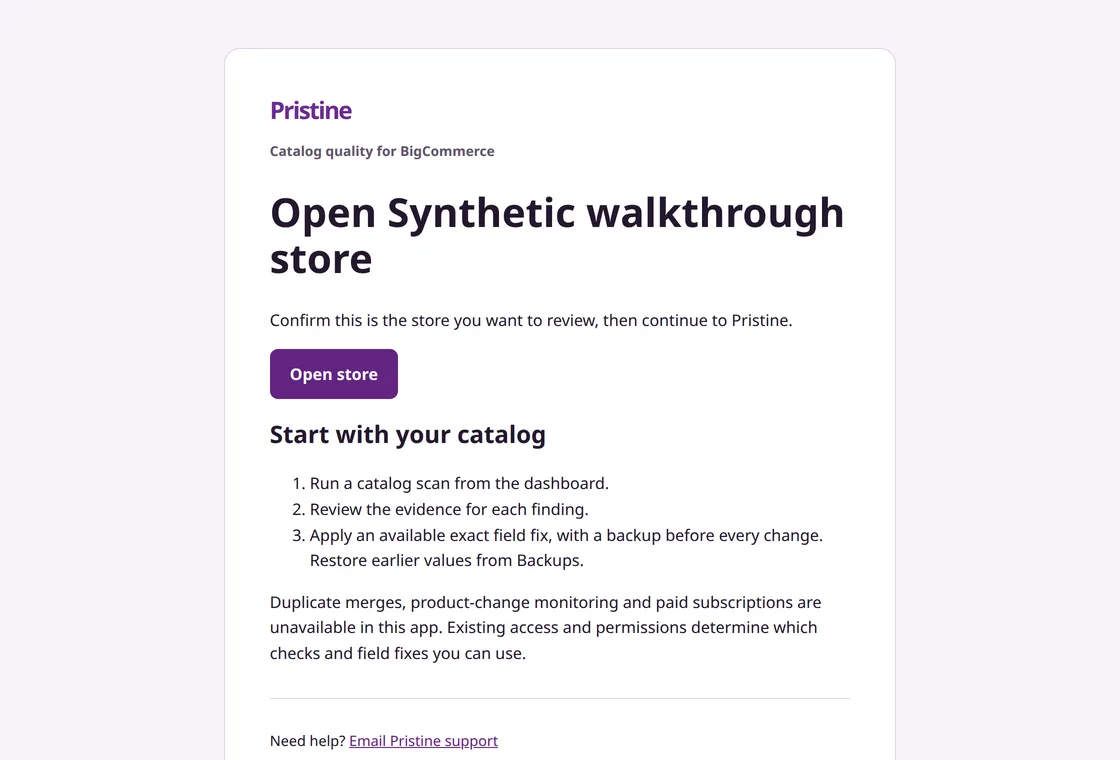
The confirmation page names the store you're installing on. This example uses a demo store.
You're on Catalog quality
Pristine opens on Catalog quality, inside your control panel. It's free during the open beta; no application is needed. Choose Run all checks to start the checks that are ready, or Run scan beside a single check, such as Duplicate listings. Getting started explains what happens next.
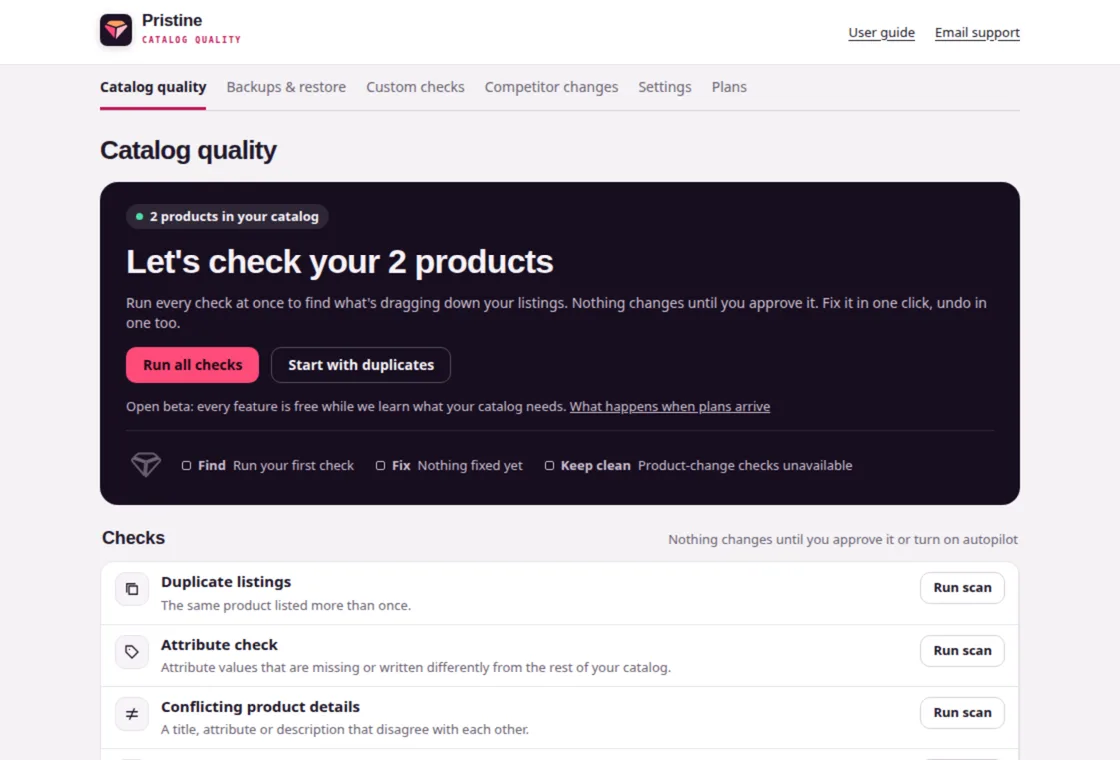
A demo store with two products. Your product count and checks will reflect your catalog.
What's included on BigCommerce
Included
- Catalog checks for duplicates, variants, attributes, conflicting details and mismatched photos
- Every finding with its evidence
- Compare possible duplicates side by side
- Custom checks written in plain English
- Field fixes, each with a restore point
- Staff with app access in the same store can use it
Not available yet
- Duplicate merges
- Checks on product edits as they're saved
Return to your store's app
Open Pristine again from Apps in the same BigCommerce control panel. You do not need to reinstall it each time. Staff members need access to the app in that store.
If the app cannot open, launch it again from Apps. Do not change browser privacy settings to work around a problem. Contact support@pristinecommerce.shop if you still cannot continue. Describe the step and message shown, and never send passwords or access tokens.
Uninstall Pristine
In the BigCommerce control panel, go to Apps → My apps. Open the menu beside Pristine, choose Uninstall, then Confirm.
The store owner can uninstall apps. Staff need permission from the store owner to install or uninstall apps. If BigCommerce says ‘Uninstalling app failed,’ ask the store owner to try. If it still fails, contact support@pristinecommerce.shop with the time of the attempt and the error shown.