Check your Salesforce Commerce Cloud catalog
Get started on Salesforce Commerce Cloud
Export your Salesforce Commerce Cloud products, upload the CSV to the Pristine web app and open Catalog quality, ready for your first checks.
Salesforce Commerce Cloud in the open beta
A direct connection to Salesforce B2C Commerce has been built and is pending live validation before release.
Until then, export your products as a CSV and upload them to your Pristine account. You get the same catalog checks and evidence for every finding.
Export from Salesforce Commerce Cloud
In Business Manager, go to Merchant Tools > Products and Catalogs > Import & Export > Catalogs > Export. Choose your catalog and select "Also export as a CSV file". Include the relevant locale, site, attributes and variation IDs; we help prepare product relationships.
Upload it to Pristine
Sign in to Pristine
Go to my.pristinecommerce.shop and choose Continue with Google. Your account is created the first time you sign in.
Choose Upload a catalog
On Connect a catalog, choose Upload a catalog. Name the catalog, choose the CSV and select Upload and open catalog.
Match the columns if asked
Pristine recognizes common column names. If yours differ, it asks which column holds each product field. Choose them, choose the file again and select Upload and open catalog again.
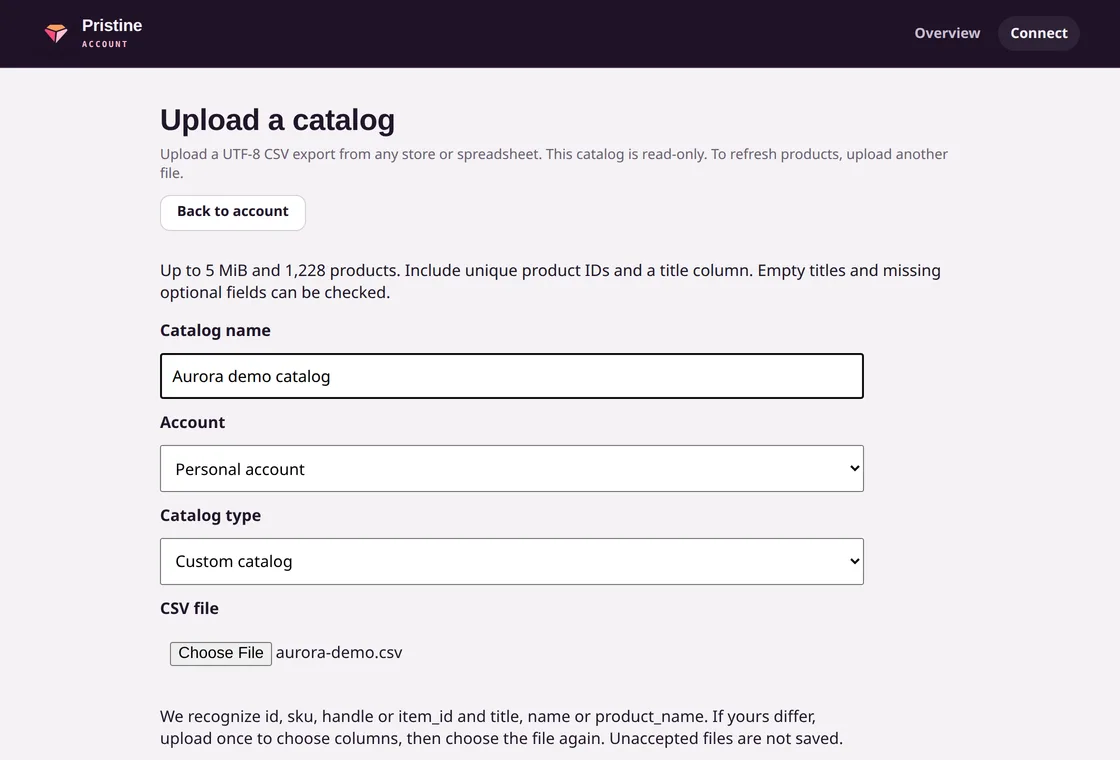
Up to 1,228 products and 5 MiB per uploaded catalog. The CSV upload guide covers column matching and limits.
You're on Catalog quality
After the upload, Pristine opens your Salesforce Commerce Cloud catalog. Open the catalog to reach Catalog quality. Choose Run all checks to start the checks that are ready, or Run scan beside a single check. Getting started explains what happens next.
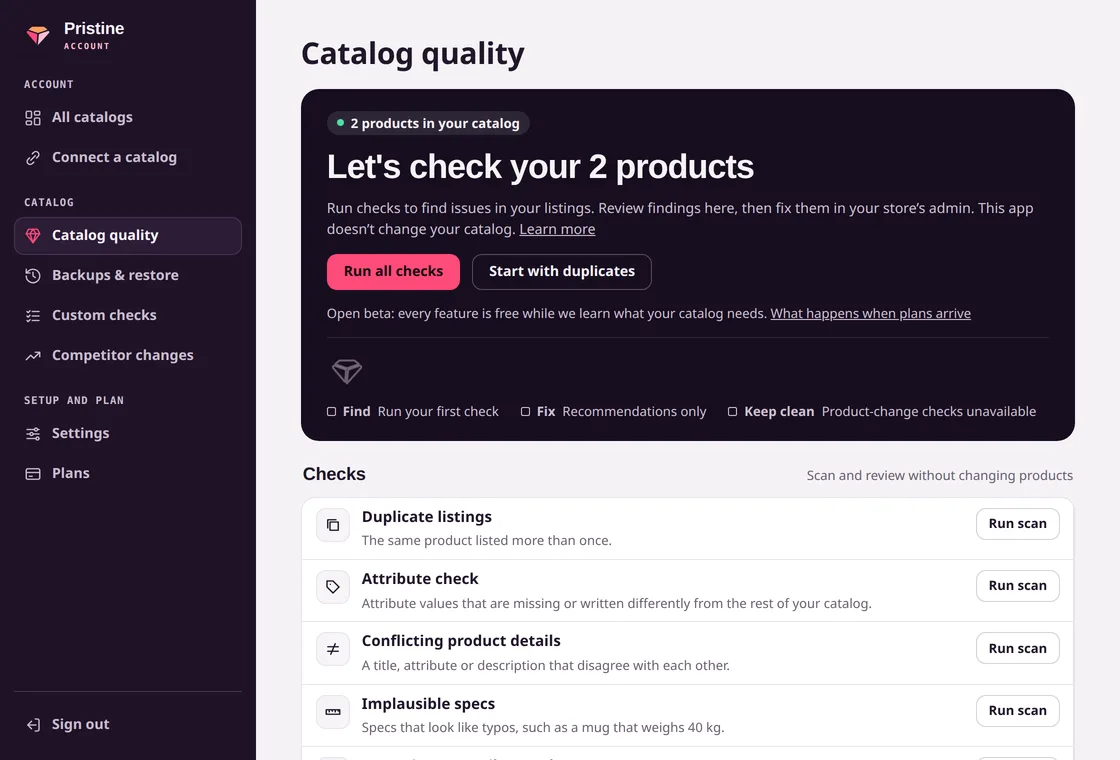
A demo catalog with two products. The left menu has Backups & restore, Custom checks, Settings and Plans for this catalog.
What's included
Included
- Catalog checks with evidence for every finding
- Custom checks written in plain English
- Help preparing the export and matching columns during the beta
- Re-upload when your catalog changes, then run checks again
- Up to 1,228 products and 5 MiB per uploaded catalog
Not available yet
- Fixes written back to your store
- Duplicate merges
- Shield on-save checks
What it costs
Pristine is free during the open beta, within your catalog's usage credits. There's nothing to pay and no paid upgrade while the beta runs. We'll tell you before paid plans start; your findings and history stay.