Run your first catalog check
Getting started
Run the checks that are ready, see what needs attention, and review your first finding. This picks up once Pristine is set up on your platform.
Set up Pristine first
This guide starts on Catalog quality, the page Pristine opens on once it's installed or your catalog is connected. If you haven't got there yet, follow the setup guide for your platform first.
- Shopify Install Pristine Commerce from the Shopify App Store, approve its permissions and open Catalog quality, ready for your first checks.
- BigCommerce Pristine opens inside your BigCommerce control panel. Install the app, and run the catalog checks, read the evidence for every finding and write your own rules. Scans never change your products.
- Pristine web app Sign in with Google, connect a store or upload a CSV, and see every catalog together on your account overview.
- Wix Install Pristine Commerce, open it in your Wix dashboard and run a full scan of your products. You can also upload a CSV export.
- Squarespace Sign in to the Pristine web app, authorize read-only access to your Squarespace products and import them, ready for your first checks.
- Magento / Adobe Commerce Pair the Pristine Commerce module with the Pristine web app, import a storefront view and run your first checks, or upload a CSV export.
- WooCommerce Export your WooCommerce products, upload the CSV to the Pristine web app and open Catalog quality, ready for your first checks.
- Salesforce Commerce Cloud Export your Salesforce Commerce Cloud products, upload the CSV to the Pristine web app and open Catalog quality, ready for your first checks.
Find something to review
Run all checks
On Catalog quality, choose Run all checks to start the checks that are ready. To run a single check, choose Run scan beside it, such as Duplicate listings. In the Wix dashboard, choose Run full scan.
Watch findings arrive
Pristine shows how many products it has checked and how many findings it has made so far. You can start reviewing before the checks finish.
Read a finding
Open a finding to read the products, evidence and reason; in the Wix dashboard, each finding's evidence shows under Findings. A finding is a suggestion to review, not a change to your store.
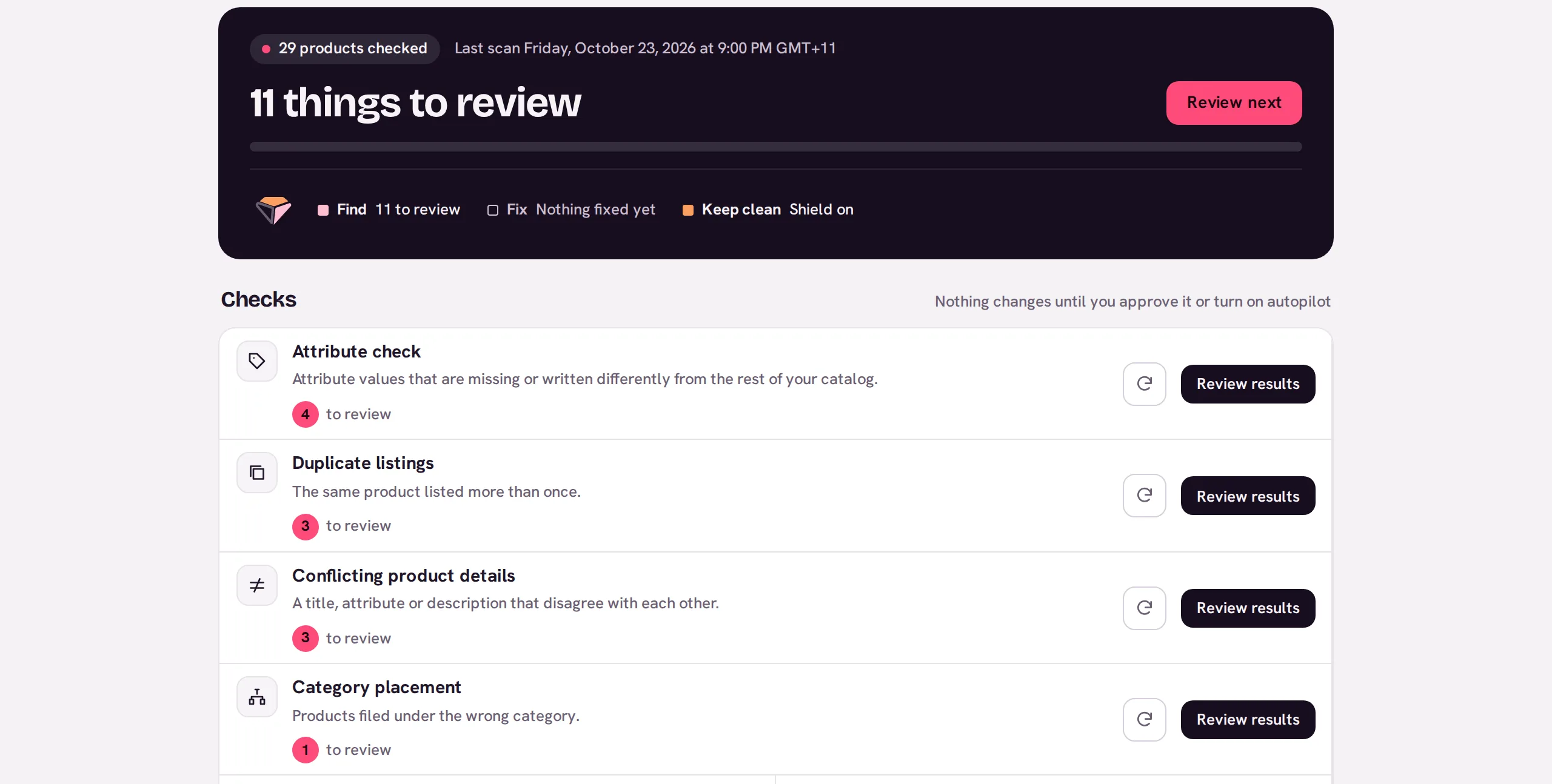
What you'll see once checks finish: counts for each check and findings waiting for your decision. This is a demo catalog in Shopify; your counts will differ, and other platforms show the same page in their own frame.
Check again as your catalog changes
Shopify
Shield checks new and edited products for duplicates as they're saved and lists any it finds under Possible duplicates from recent edits. Turn on weekly or monthly rescans in the Shield section of Settings.
BigCommerce
Pristine reads your store each time a check runs. Run the relevant check again after you edit products.
Connected stores
For Wix, Squarespace and Magento, refresh the catalog in Pristine, then run checks again. Refresh is manual.
Uploaded catalogs
Upload a new CSV export when your catalog changes, then run checks again.
Which check should I start with?
Choose the problem you want to investigate. Duplicate listings looks for repeated products. Conflicting product details looks for disagreements within a listing. The checks guide explains the rest.
Can I scan for free?
Yes. You can run catalog checks for free on every platform, within its usage limits.
Ask about what you're looking at
In the Shopify app, every page has a chat button in the bottom corner. Ask it about the page you're on or about your catalog, and it answers from your own products and findings. It can look things up but can't change anything, so when you want to act on an answer it tells you where to do it. On other platforms, use Email support in the app or email us.
“Which of these should I keep?”
On a duplicate, it compares both listings and points out which one has the fuller details, the barcode and the photos.
“Why was this flagged?”
It explains the evidence behind a finding in plain words.
“How many products are missing descriptions?”
It counts from your catalog and names a few to start with.
“What happens when I merge?”
It explains that the other listing is archived and redirected, not deleted, and how to undo it.